Why should you use the pair maker plugin feature for your clothing websites?
Let’s see what the pair maker plugin does.
The Pair Maker is a product feature on the market. Additionally, no other plugin on the market gives free access to such a function.
A Pair Maker refers to the pairing of two goods according to their compatibility.
In essence, this tool will automatically provide clients with professional advice about what will look best on any chosen item.
It combines and contrasts various ensembles from the admin-listed products before making the best recommendation. As a result, a product bundle (pair) of clothing is created.
What is Pair Maker for online clothing stores?
The first decision the website user will make is whether to buy a pair of jeans or a shirt/t-shirt he prefers (whatever they wish to start with).
The other member of the duo must then be chosen separately
The other half of the pair will be displayed in such a way that the user will have a clear understanding of whether the chosen products go well together or not.
It helps the user understand better what will look best for the chosen item. The user receives a professional opinion (by the plugin)
The buyer observes that he is making his purchase in a new fashion but still using the traditional method of purchasing from an offline retailer. Utilizing this “make pair maker feature” greatly improves the customer experience.
You might be interested in learning more about and experimenting with the Woo Choice Plugin‘s Pair Maker functionality.
Like Ring Builder, Pair Maker is the main feature of the Woo Choice plugin, and it is compatible with all WooCommerce websites.
Here are some examples to help you understand the pair maker plugin.
For example, if you sell clothing online, the buyer will automatically receive advice on bottom wear after selecting top wear.
In the event that the user becomes perplexed, they will be directed by mixing and matching different options, and a pair of clothes will usually be created.
On the official WordPress website, you can download this pair maker plugin. With this addition, offering comparable products in a bulk container using the pair maker plugin strategy is simple.
Additionally, it allows you to make available as many or as few items in the pair maker plugin assortment box and supports simple and product variations.
Customers customize these items by choosing a number for each item in the selection. The pair maker plugin is therefore perfect for making items like the perfect pair.
How does the pair maker plugins work?
When making online clothes and accessory orders, users can use the fun function called Pair Maker to create pairs.
Choose top outfit
Choose your favourite top and get set to browse the extensive selection of bottom garments.
Select “Make a Pair”
After choosing your top, go to the “Make a Pair” page and experiment with matching bottom garments.
Enjoy Pair
Enjoy Pair Choose, buy, and enjoy the pair.
Woo Choice Plugin: Your One-Stop Online Clothing Website Solution
These factors are enough to show that the Pair Maker feature of the Woo Choice Plugin is essential for any online clothes store.
Provides a creative solution for your fashion clothes website with a user-friendly front-end and a successful back-end.
Admin setup is simple.
Responsive design, which effectively operates on many browsers and screen sizes.
Tested on more than 200 different hardware and browser combinations.
Search filters that may be customized to match the appearance and features of your website.
Flexible to match various web designs.
conclusion
Therefore, if the user becomes confused by chance, the plugin directs them by offering several options from the product catalog that is accessible on your site. Thus, a pair of accessories is made for the consumer.
Although it is expected that users are informed about color matching, this feature is particularly helpful because it can help them choose the right pattern and style of bottom wear, or likewise.
It is good to give this function a try once. It is indirectly given to promote the standard marketing ways to sell more.
You can also make use of the pair maker option if you have any items that you believe can be sold in pairs, such as clothing, home goods, or anything else.
If you are a WooCommerce developer or as a business owner having a WooCommerce website running with a large inventory then at some point in time above question might have come to your mind.
Speed is in the important matrix for any site to grow to the top, remain in popularity, and for higher sales conversion. And for sites with larger inventory e.g. the jewelry and diamond websites, the problem becomes hard to solve when the number of diamonds goes in thousands in some instances above 100K.
To understand the problem we have run some benchmarks. We did that to define the problem based on proof and to create a foundation to solve it in the right direction.
Benchmarks we did
We have run a variety of benchmarks covering the stock installations, with the optimization plugins like caching, etc enabled including our optimization plugin. You will come across these variants of benchmarks as you go further in this article.
Details of the number of products, categories, attributes, etc. in the database
– The number of products — ~68.3K
– The number of categories — 36
– The number of products in the category — ~68.3K
– The number of attributes — 12
– The number of values in the attribute-249/6/10/401/4/4/7/4/41/5/401/4
– The number of attributes of the product — 12
– The number of variable products — ~361К
– The number of rows in wp_postmeta table — ~9Million
– The number of product options — 1–5
– The number of photos of each product — 3
Plugins used and the philosophy we believe in
We are trying to recognize the problem that a WooCommerce store might have when the number of products is quite larger. And to solve the same problem we believe in using available plugins that are solving the specific problem and develop our solution as a plugin where we think the community lacks a certain plugin solving a particular problem. So it is obvious that to get the best performance one needs to use a combination of 2–3 plugins fitting with the content, data, and kind of traffic the site is serving to. For this benchmark, we have used a combination of the external plugin and our plugin, whenever you read below a mention of external plugins then it means W3TC plugin, Cloudflare service, and image compression plugins for image compression here it is necessary to note that we are not endorsing any of the external plugins mentioned here neither we say that this is the only good option but we find it good enough to help us solve the problem. You can use any plugin that you think can fit better to your site structure,
Server & Hardware
AWS EC2 Instance
2GB RAM
SSD
Front end benchmark results at 68K products
Note: The benchmarks mentioned below are for the shop page. And you can access here the actual shop page running the demo used in this benchmark.
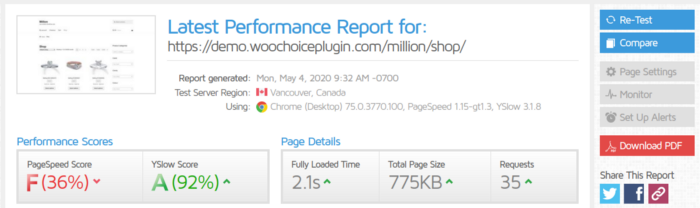
Google PageSpeed Insights
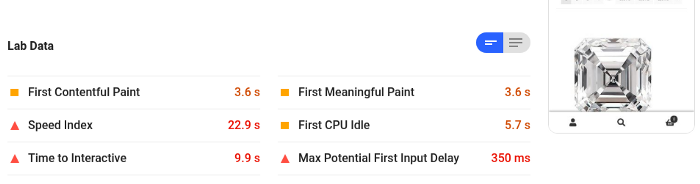
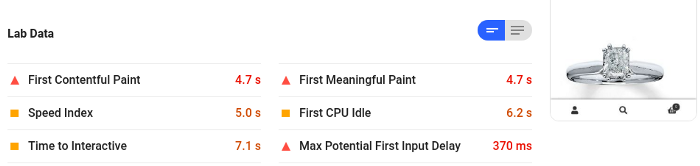
Mobile (without any optimizations enabled)
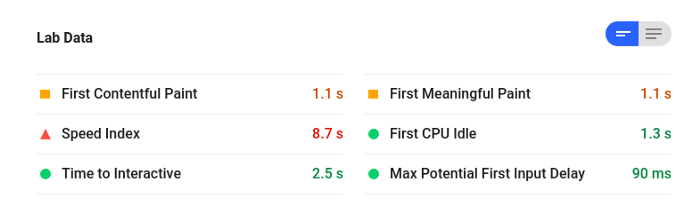
Desktop (without any optimizations enabled)
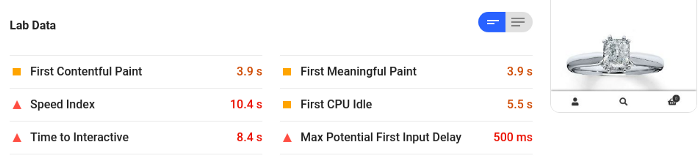
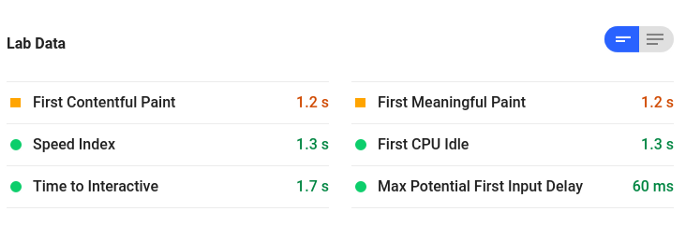
Mobile (with our Free plugin and extension solution enabled)
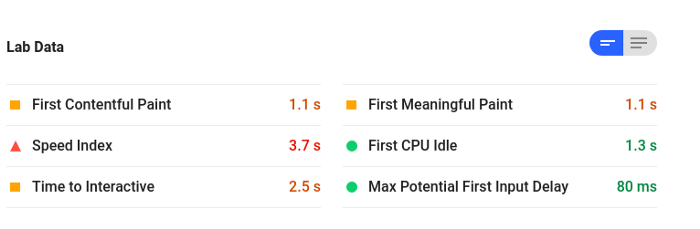
Desktop (with our Free plugin and extension solution enabled)
Mobile (with external optimization plugin + our Free plugin and extension solution enabled)
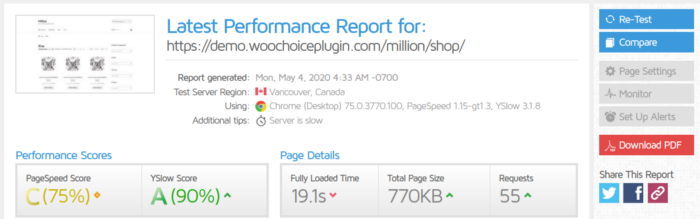
On the first test (with our Free plugin and extension solution enabled)
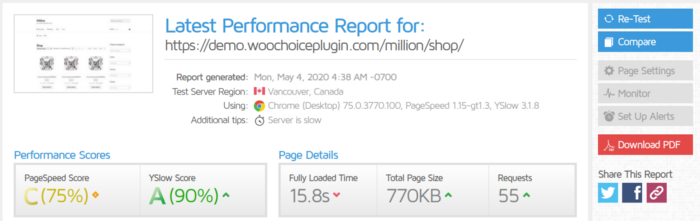
On the second attempt as re-test (with our Free plugin and extension solution enabled)
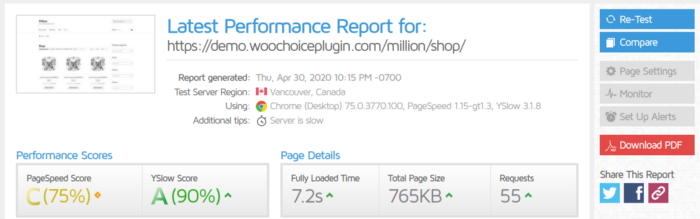
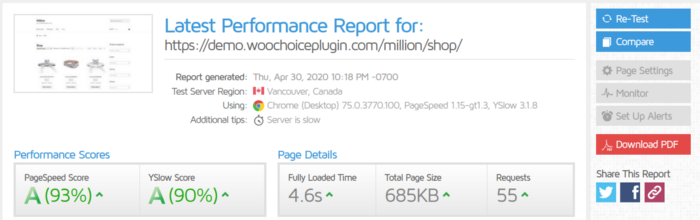
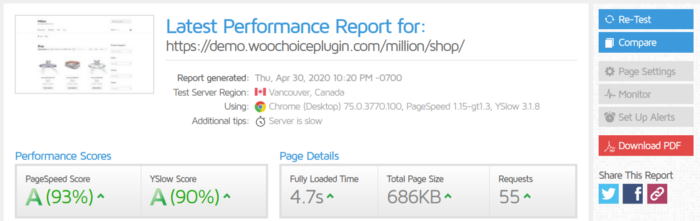
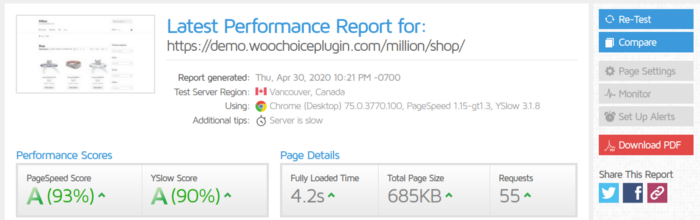
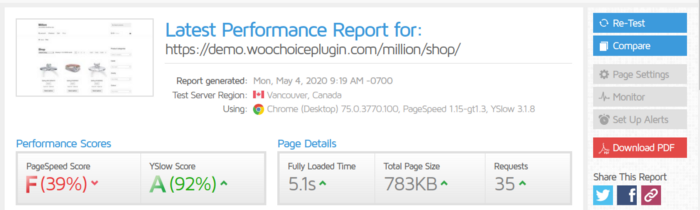
On the third attempt as re-test (with our Free plugin and extension solution enabled)
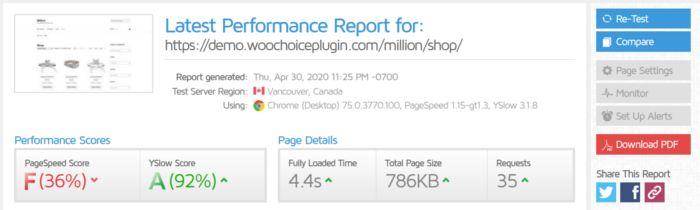
On the first test (with external optimization plugin + our Free plugin and extension solution enabled)
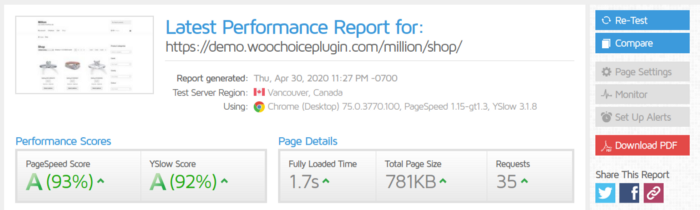
On the second attempt as re-test (with external optimization plugin + our Free plugin and extension solution enabled)
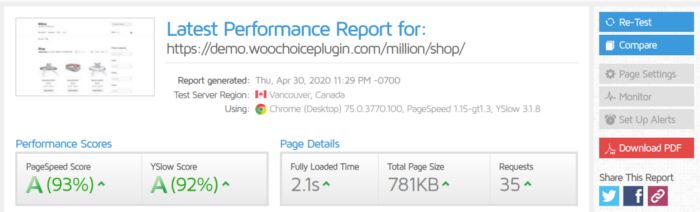
On the third attempt as re-test (with external optimization plugin + our Free plugin and extension solution enabled)
Load test
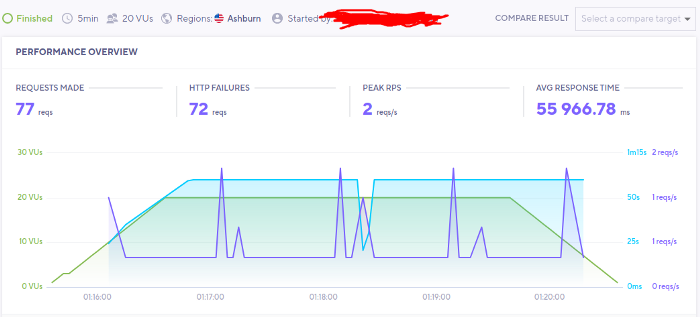
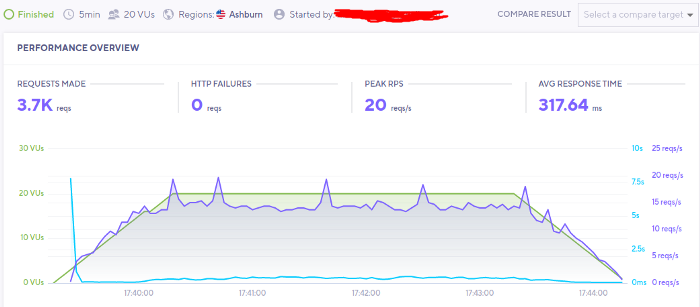
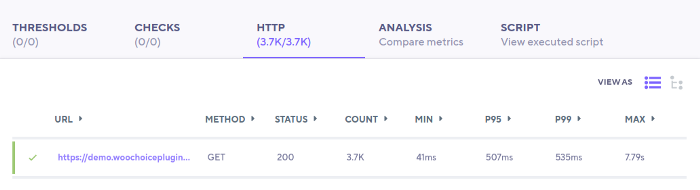
With 20VUs at a time, for 5 mins. With roughly 3.5K requests made in 5 minutes.
Without any optimizations enabled
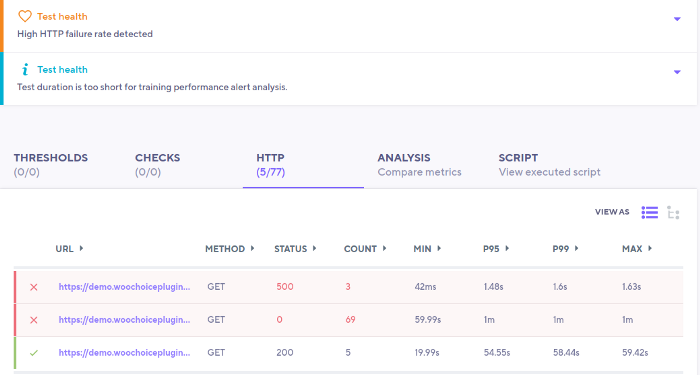
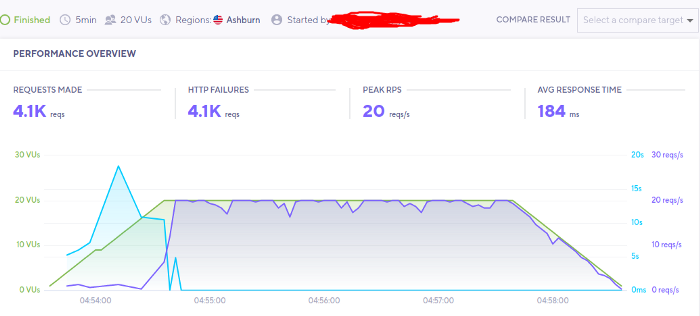
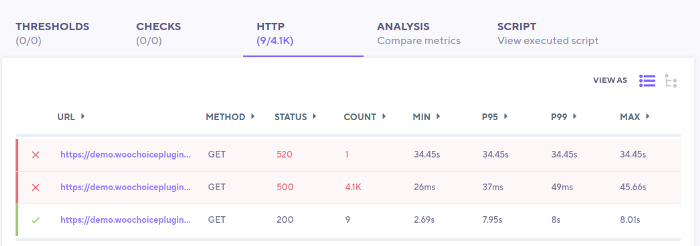
(It caused the server to went down and even ssh connection wasn’t working, needed a reboot!)
With our Free plugin and extension solution enabled
With external optimization plugin + our Free plugin and extension solution enabled
Woo product inserts speed benchmarks
The problem of front-end speed is not significant for sites with 5–10K products but it becomes highly significant when the sites are loaded by admin operations such as product insert/update and when there are some users online and bots are doing crawls etc. At such times the site becomes quite slow on the front end. Below are some different observations while product inserts are in progress.
1 These readings are for variational and simple products, It is noticed that at 27.9K products in woo catalog site’s front end becomes unusably slow so much that it takes 25 seconds to load the shop page while the continuous 1 product at a time insert in progress and the caching plugins was disabled.
1.1 with all above settings except now the simple products are continuously inserting 1 product at a time and so now around 75% products are of the simple type and this time in incognito mode and total DB at 41.5K products the shop page load time is ~60 seconds for 3 page-load tests.
2 It is noticed that for simple items insertions speed is ~5 sec per item while DB has
35K items/products
3 And it is noticed that the server CPU usage is going beyond 99% while the mem usage is around ~40% when even the simple products are being added and they are also one at a time but yeah repeatedly. So maybe putting some delay before repeating would help. The speed was 239 inserts per hour after testing for 3 hours.
3.1 After setting the delay of 3 seconds after each product insert. The speed was 359.6 inserts per hour after testing for ~3 hours while the total products in the database stand at ~65K. And the shop page load time is as given below while the product insert was in progress as per the pace and settings specified here:
Google PageSpeed Insights
Google PageSpeed Insights was showing timeout error when tried 2 times
GTMetrix
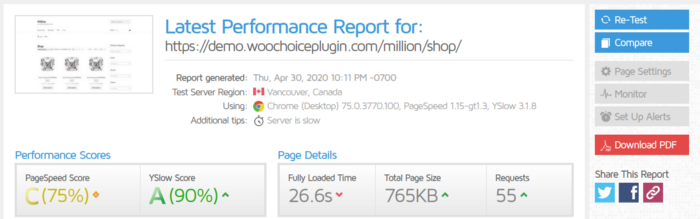
On the first attempt
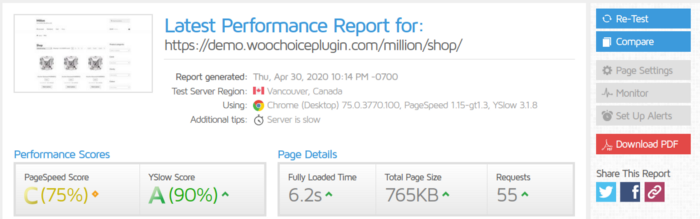
On the second attempt as re-test
4 With the same settings as specified in point 3 above but with caching and optimization plugins enabled the W3TC and our plugin, the speed was 356.46 inserts per hour after testing for 1.5 hours while the total products in the database stand at ~65K. And the shop page load time is as given below while the product insert was in progress as per the pace and settings specified here:
Google PageSpeed Insights
Google PageSpeed Insights had timed out around 4–5 times out of 12 requests made and when it displayed the analysis the result was average once and good on for the rest but since it had timed out it is not worthy to show the result here.
GTMetrix
On the first attempt
On the second attempt as re-test
Findings
As can be seen in the above snaps it is quite clear that Woo is capable of handling more than 50K products if the right optimization plugin combinations are installed on the WooCommerce site. As you can see with our solution there is a large jump in the performance which is because of the optimized indexing layer and the independent DB layer that we use and it is critical to note here that these large jumps in performance can help hugely when your pages are not cached or when you need to rebuild caches quite frequently. However, I notice that merely with our solution the performance is not at its best and that is why we believe in the right combo and so after applying that you can see that the performance is very good when applied to the optimizations of the external plugin and our solution. But anyway there is one problem that is not addressed yet which is the insert speed which becomes quite slow once you start going past 15K products on your website. The solution is proposed in the below section.
Pain points
From the above stats, the one problem that is quite devastating is the insert speed of products at the backend and of course, it makes website front ends so slow that it almost becomes unusable. That is one of the major problems that is not met with any plugin solution yet. And it is a key problem not only for the backend but for front-end users also because when the backend operations are in progress our benchmarks stats above show that the frontend becomes slow. So for the sites with the larger inventory, this problem needs to be fixed because in the general case scenario such sites would be needing quite a frequent insert & updates of products which would affect front-end traffic no matter at which time the backend operations are run.
Our solutions
Free Plugin
In our free plugin, the fundamental feature that we provide is the basic DB layer which is quite helpful to increase the speed of searches, shop & category pages if your site is having a large inventory starting from 15K products.
The other key feature that we have provided is a detailed, advanced and schedulable preload cache mechanism that we think is missing so far in the WordPress community. Usually, all websites preload cache of all pages with many different plugins available that are doing this but the search filters are missed and that is where the users notice slowness occasionally. There are options in our plugin to preload a combination of search filters(our plugin will make sure everything is cached including deep search filters) with the scheduler in place so that you can let the plugin preload caches in a specified period only as well as you can set frequency this will let you preload cache for critical filters which otherwise would make your site look slow and the scheduler here helps in doing it in quite a time so that your frontend users don’t notice slowness while the preload cache is in progress. Here it is important to note that without our plugin users would need to create a detailed sitemap containing all search filter combination links which is a tedious task.
Extension DB Layer
If you have looked at the front-end benchmarks above it is quite evident that our solution made a huge difference after being applied to the stock installation. With our solution, there is a large jump in the performance and as said above it is critical to note that this performance gain can help hugely when your pages are not cached or when you need to rebuild caches quite frequently. Once again, merely with our solution, the performance is not at its best and so of course, you will need to keep using other caching and optimization plugins.
Extension Solution to Slow insert Speed
We have been working on solving this problem and have come up with a solution that goes by depending on 2–3 different architectures that users can choose from based on their site structure and content. If you are interested then visit the link section below there you will find a link to the extension. This extension helps boost insert speed by around 20x to 30x and helps keep the front end smooth.
A Horizontal Product Filter means the arrangement of Filters in the Horizontal way on the webpage. Here, if you are looking for this feature then Woo Choice Plugin (free) provides a free Horizontal Filter feature. This plugin offers an advanced ajax Horizontal Filter for any WooCommerce product page (e.g the Shop page or Category page).
Woo Choice Plugin had grown mature and covered all kinds of requirements for creating advanced and customizable Horizontal filters. Also, you can add Sliders, Buttons, Icons filters, dropdown-based filters, Checkbox-based filters, radio, and the list goes on. Thus, you can cover any kind of advanced or custom requirements using the Horizontal Product Filter.
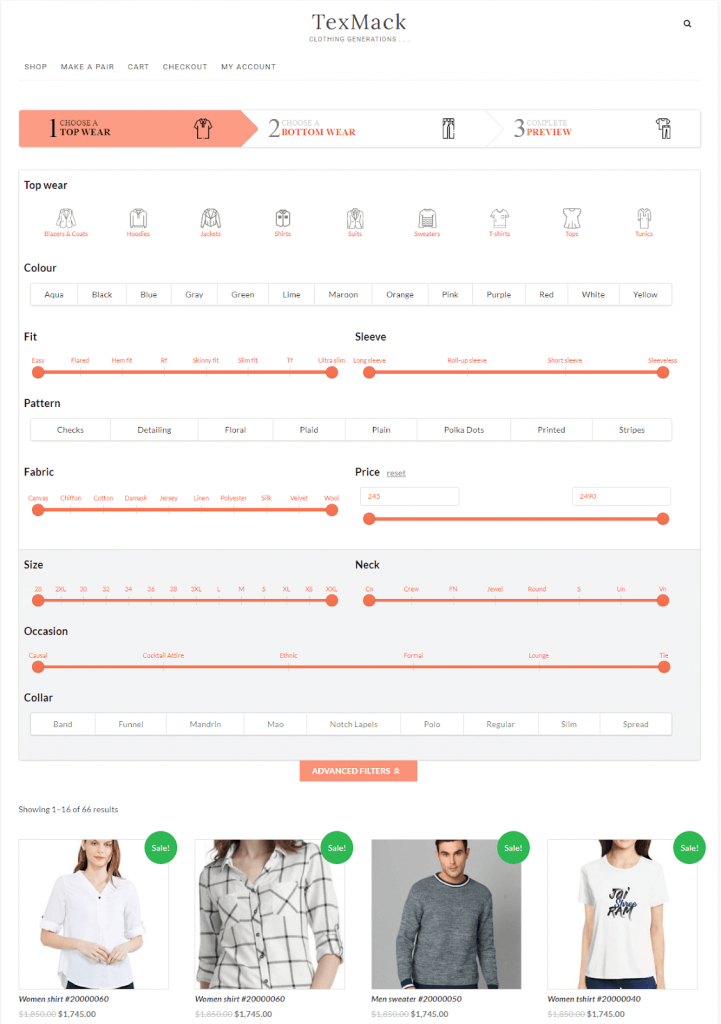
Thanks to the Jewelry Diamond Industry, the Woo Choice Plugin had matured the Horizontal Filters to its best. Because, Jewelry and Diamond Industry requires advanced and visually appealing Horizontal filters, especially for the Diamond search pages. But, now we are excited to offer this Horizontal Filter for the entire eCommerce industry. Because this filter is very useful and also it can be useful in clothing sites or any other requirements. Lastly, for the clothing, take a look at the Horizontal Filterhere.
Advantage:
It’s Free.
It’s advance and fully customizable.
Easy to use.
You can customize the design and appearance as per your requirements.
You can add customize CSS.
How to add Horizontal Filter for WooCommerce Product Module via Woo Choice Plugin?
Using Sample Data:
First of all, just Install and Activate Woo Choice Plugin. For Installation and Setup, follow theDocumentation page here.
You can follow the above instruction and complete the setup wizard and sample data process. And, you will get filters the same as it is displayed in the snap below.
For Diamond Jewelry:
For Clothing:
Otherwise, follow the process using Real Data :
Using Your Real Data:
So, just add products data via WooCommerce. And then follow the steps given down below to add or create the Horizontal Product Filter.
Firstly, create one category and add products via WooCommerce.
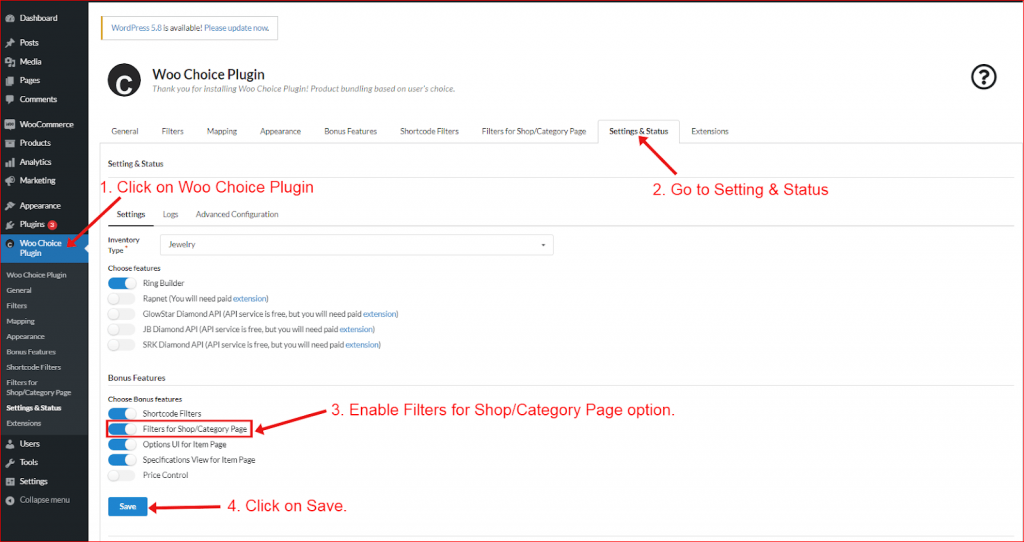
Step-1: Go to the Woo Choice Plugin admin panel > Setting & Status> enable the Filters for the Shop/Category page option. And, you can also follow the documentation of theShop/Category tab.
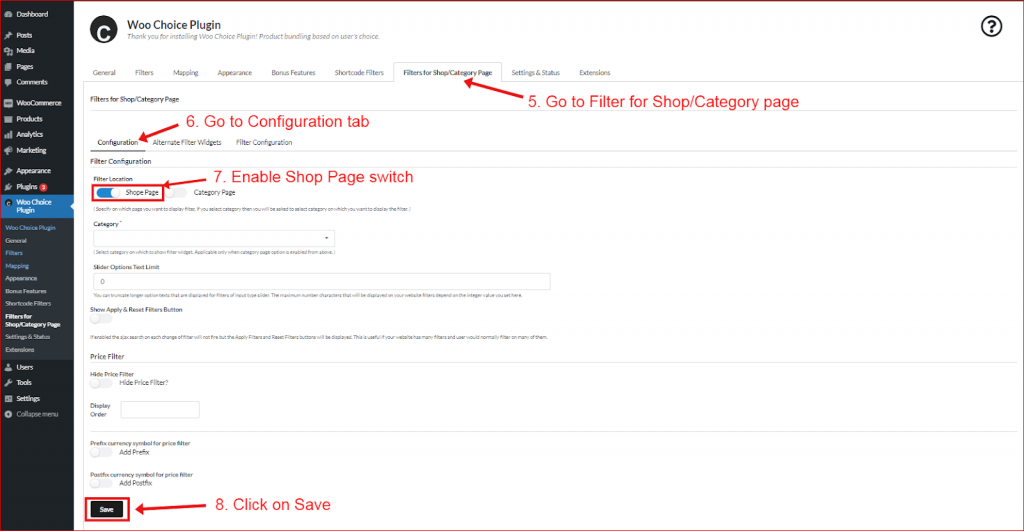
Step-2: Go to the Filter for Shop/Category page> Configure tab> Enable the Shop page and Category Page option.
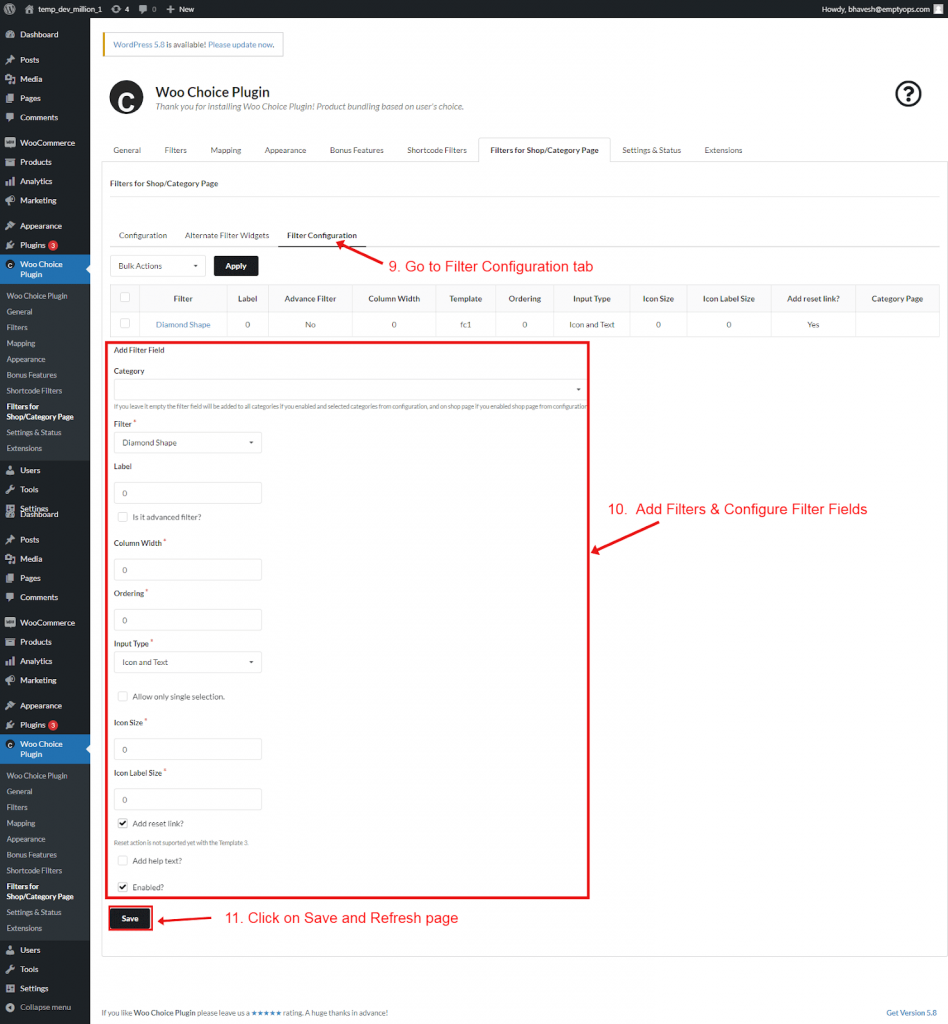
Step-3: Now, go to the Filter Configuration tab (beside the Configuration and Alternate Filter widget tab) and add Filters & configure Filter Fields(which you want to show on the front end of the Shop page or Category or any page).
Step-4: Save it and Refresh the page.
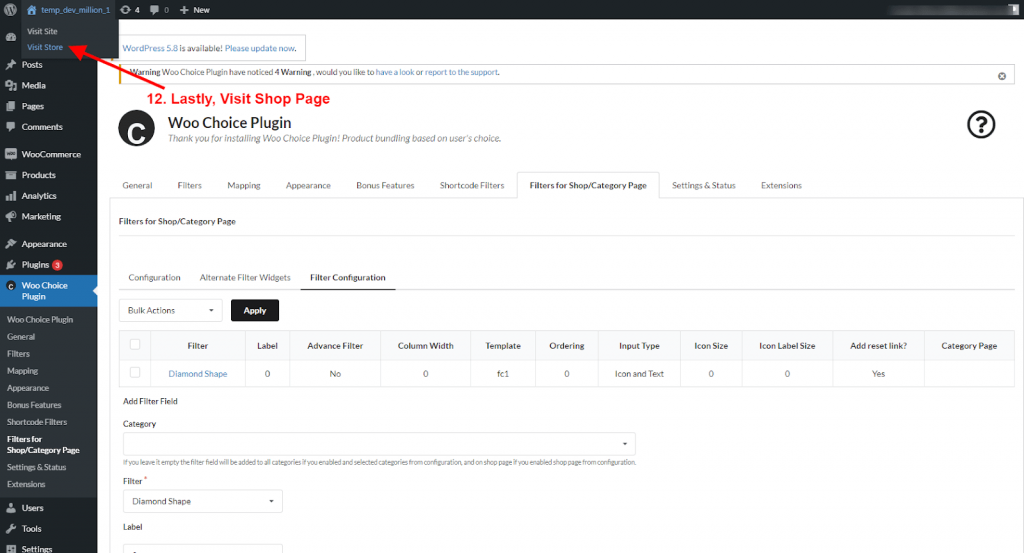
Lastly, the output will look like the number of filters and the kinds of filters you have added for the manual way.
To know more about our plugin and extensions,visit here.