Today, we all live in a place where the internet is leading future businesses and generations. Whereas, e-commerce platforms are the new way to lead the online shopping business. And having a business on the digital platform is not enough. What more requires, is an effective and competent site with the right tools to enhance your business. If you are looking for it then you have come to the right place.
Today, I will talk about the technologies that might bring your attention towards some innovation for the diamond/ jewelry websites industry, or if you ask me to be more specific than about diamond APIs that are the backbone of most online diamond trades/businesses.
(So, First of all, those who don’t have an idea for what is an API? And what exactly API Integration is?
API stands for Application Programming Interface. An API is a set of programming code that allows transmitting data between software to software or simply, a software intermediary that allows two applications to talk to each other. API Integration refers to this seamless connectivity that allows organizations to automate business processes, and enhance the sharing and embedding of data between various applications and systems.)
After getting the ideas of API and API integration. Let’s move further, there are problems for the integrations of diamond APIs, which users have faced and are still facing. After analyzing the problems we bring solutions in the form of a plugin called “Woo Choice Plugin”, it’s a powerful and effective plugin for diamond/jewelry websites. This plugin allows Diamond API integration. (Within this plugin there is an extension “Diamond API Integration Extension” built in a way that supports any type of Diamond API extensions )
Now, with the Diamond APIs integrations, Diamond APIs are important when you are running a diamond site. So, this plugin(Woo Choice Plugin) allows Diamond API integration with one of our extensions, which helps to integrate with the services (like “instant inventory services” of rapnet API) and allows more customization features. Generally, every single time we have to work with different types of API, which needs different types of integrations to integrate smoothly with the website backend and make things complicated, this extension has benefits also for these kinds of problems. We try to look for business-level solutions and built an extension that allows all the APIs to runs under our single extension “Diamond API Integration Extension”. This extension allows websites to integrate with any kind of API service. (note: To use “Diamond API Integration extension” you need to first install “Woo Choice Plugin”)
So How many APIs do we support in our single extension?
This extension supports the integration of all popular APIs like Rapnet, IDEX (International Diamond Exchange API), GEMFIND Diamond Link API, JewelCloud API, MID House of Diamonds API, POLYGON Virtual Inventory API, and VDB (Virtual Diamond Boutique API).
This extension also supports Direct API Providers like Glow Star Diamond API, JB Diamond API, SRK Diamond API, and many more. You can also send us a request to have us support the missing API.
Apart from that if your diamond inventory is coming in CSV through the FTP folder, then we support the FTP-based integration too, we provide this kind of back automation as well as ensure that your website and its servers stay healthy and run smoothly, using minimal resources, we provide scheduler tools that help you set the frequency of checking updates which also helps you ensure real-time update.
What’s More To Know?
There are some characteristics of our extension that optimize back-ends to help you run your site smoothly even if the APIs or your inventory is very large. Of course, it helps in cutting the costs of servers as well. If that is not enough we have two other extensions that are specifically designed to help run sites smoothly even with beyond 100K diamonds or other products.
To run rites smoothly, speed is an important matrix for any site to grow in a huge market with lots of competition to remain in popularity and for higher sales conversions. We put our best effort to give the user a seamless experience when speed matters most and without any compromises, in the most popular CMS, we offer our best solutions for the database layers with all kinds of optimization.
What about Demos? Is there a Demo API available for services (like “instant inventory services” of rapnet API) for diamond jewelers?
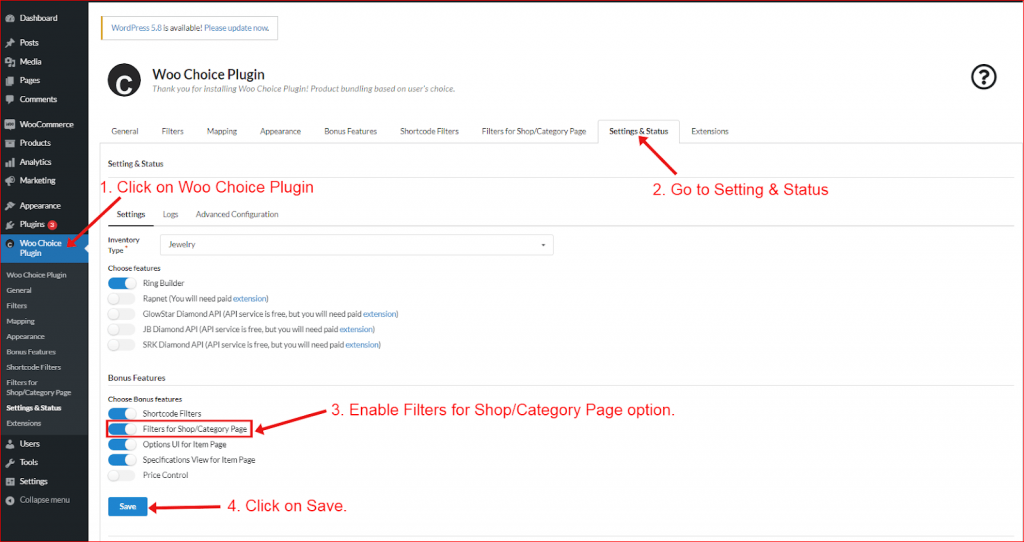
YES! It’s available and to get an experience with an optimized website you can visit our demo-01 or dem0–02 website. Otherwise, you can see the snap below in the first image, you can see diamond feed under filters in the grid/table view, that is where the diamonds fetched from any APIs will be published. UI is very simple to use and provides a perfect user experience, with the added benefits of full control over customization for website admins.

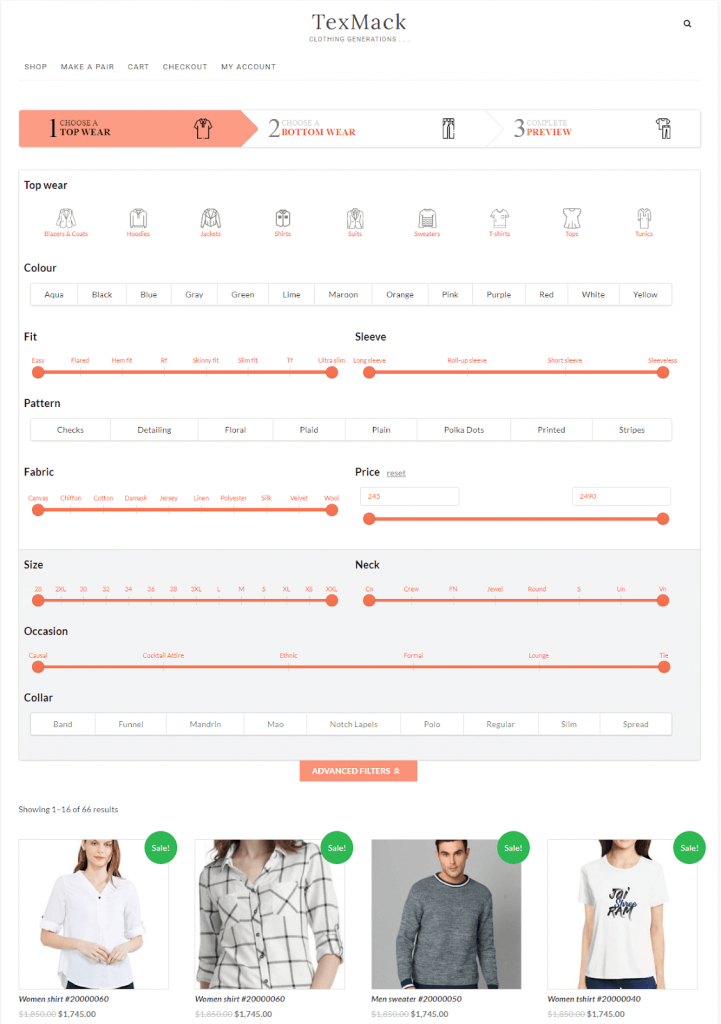
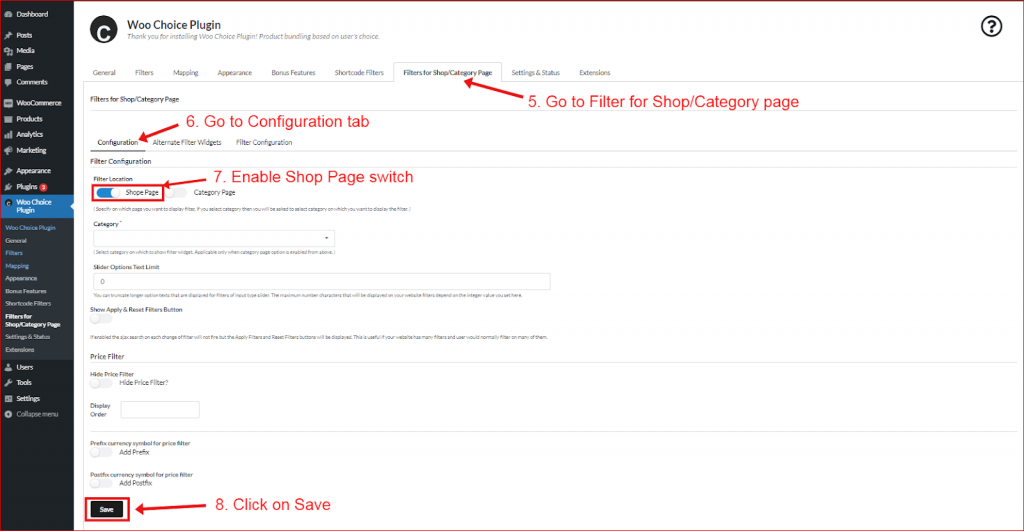
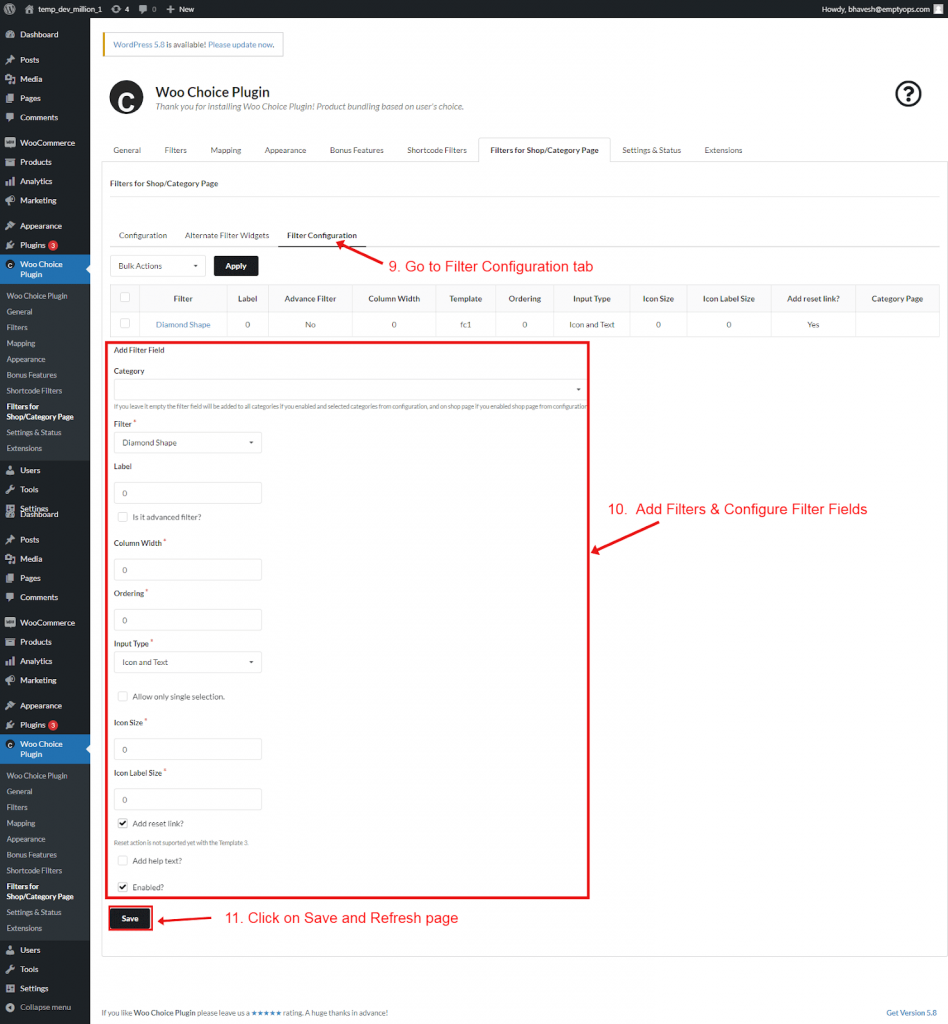
One of the important features here which you may like is the nice & efficient diamond feed pages with advanced filters with controls to customize them (which you can see in the below snapshot). These advanced filter tools make your work easier to create advanced ajax based woo-commerce product filters on any of your WooCommerce websites.

We also have plenty of features with different packages for Diamond/Jewelry websites to cover your requirements, you can visit here to choose your plugins packages. WooChoice plugin is easy to install, lightning-ready, and easy to use.
In addition to the API extension, we also have many other extensions that provide some of the best features and services for e-commerce websites which will give you and your customer the best level of experience. To know more about it click here.
We are compatible with any WooCommerce theme and compatible with all plugins.